


AmberPaint - Motion Brush
4.027.00 Reviews
App Specs
- Version
- 1.1.0
- Updated On
- License
- Free
- Downloads
- 50,000+
- Developer
- ALRESPOL
- Categories
- Art & Design
- Platform
- Android
Screenshots
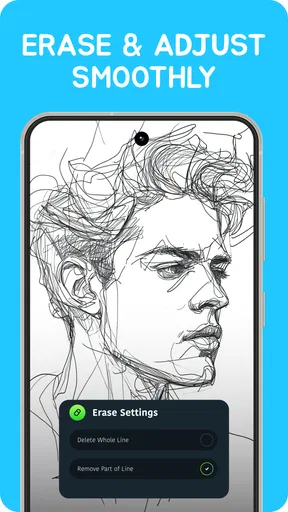
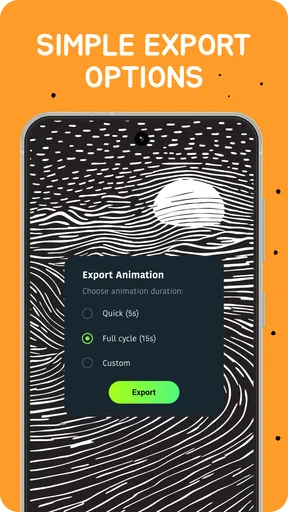
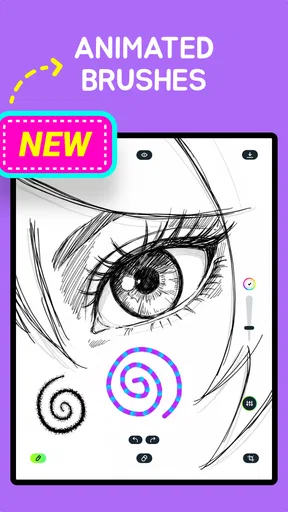
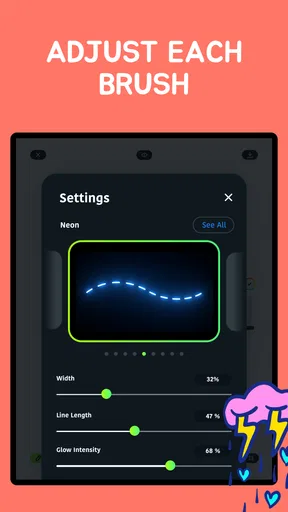
 Analysis by AppCompare
I judge a creative app by what it helps me make, but also by how easily I can move from a passing idea to something I’m happy to keep. AmberPaint - Motion Brush has a clear personality: it puts animated-looking brushwork at the center rather than trying to be an all-purpose studio. That makes it appealing for playful experiments and small visual projects, though it is not automatically the best fit for every kind of illustration.
Where the motion-led approach works
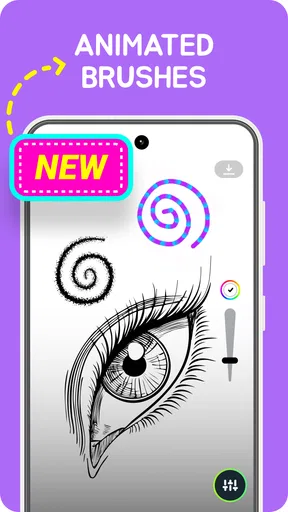
The central appeal is the contrast between a familiar drawing workflow and marks that feel lively. A simple stroke can become a focal point, so I can imagine using the app for a quick abstract background, a decorative accent, or a looping visual idea rather than a carefully rendered scene. The motion-oriented tools give casual sketching a different destination: instead of polishing every line, I can explore how a mark changes the mood of the whole image.
That focus also helps explain who is likely to enjoy it most. If you like experimenting with color and gesture, or want a less formal way to make digital art, the app has a more inviting premise than a traditional canvas built around precise illustration. It may also suit someone who already draws elsewhere and wants a separate space for expressive effects, rather than replacing their main art setup.
A practical way to approach a first session is to start with a small canvas and only a few marks. I would build a simple composition first, then use the animated brushwork as an accent instead of covering every area with effects. That keeps the image readable and makes it easier to see what the motion treatment is contributing. If the result feels busy, removing a few strokes can be more effective than adding more colors or details.
A useful role beside other art apps
Compared with a standard drawing app, where the main reward is control over lines, shapes, and careful finishing, this one is better understood as an expressive sketching tool. A conventional illustration app is usually the safer choice when I need exact curves, detailed shading, or a highly controlled final image. AmberPaint’s appeal is the possibility of making a drawing feel animated and spontaneous without beginning with a complicated production process.
It is also different from simply adding a filter after drawing. A filter changes an existing image as a whole, while motion-led brushwork can shape the image as I create it. That makes the app more useful when the effect is part of the idea from the start. For example, I might sketch a loose shape for a social post or a personal visual note and let the brush treatment provide the energy, rather than finishing a detailed picture and trying to decorate it afterward.
There is a trade-off in choosing a focused tool. A specialist app can make one kind of result feel approachable, but it may not cover every need I have in a larger art project. I would keep a conventional drawing app available for work that depends on exact construction and use this one when looseness is a benefit. Thinking of it as a companion rather than a full replacement sets more realistic expectations.
Worth Reading Before You Choose

EA SPORTS FC Mobile 26 Is a Bigger Football Game, but It Takes Time

Flipboard Shows What News Apps Must Do Beyond the Feed

Switching to Android Auto Means Rethinking Your Driving Routine

Google Calendar Makes a Crowded Week Easier to Manage

Ludo King Makes the Most of the Minutes Between Plans

Baby Panda World Brings Quick Play to Modern Phones, but Its Game Library Feels Busy
Small workflows that make experiments more useful
The layer controls described in the app’s workflow can help separate the underlying drawing from its more expressive additions. I would keep a simple base sketch on one layer and place brighter motion marks on another. Then, if the result becomes crowded, adjusting the effect layer’s opacity is less disruptive than repainting the base. This is a practical way to preserve the original idea while testing stronger colors or denser strokes.
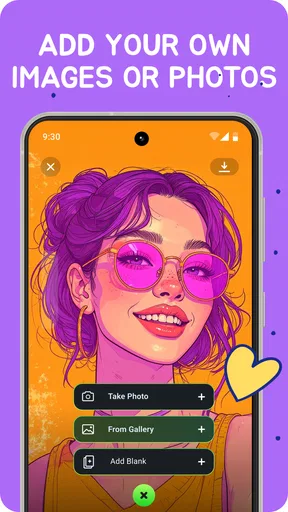
Color matching can also be useful beyond making a palette look attractive. If I’m working from a photo or an existing image, sampling one or two colors with the eyedropper can tie a loose drawing to that reference without copying every detail. I would use a small set of related shades first, then introduce a contrasting color only where I want the eye to land. That restraint is especially helpful when the brush effect already adds visual movement.
For everyday use, I can picture opening the app during a short break to make a vivid card, a playful background, or a quick visual for a message. A good habit is to decide the purpose before drawing: a background can tolerate more texture, while a small icon or greeting needs a clearer center. Once I have a version that works, I would save or export it before trying a more adventurous pass, so experimentation does not replace the usable result.
Who should choose it—and who may not
I would recommend trying the app if you are curious about expressive digital marks, enjoy making images without a long setup, or want a creative outlet that feels different from ordinary sketching. Beginners may appreciate having room to experiment without needing to plan a technically perfect drawing, while more experienced artists can treat the motion brushes as a focused effect in their toolkit. The app is especially promising for people who value visual energy over meticulous realism.
On the other hand, I would skip it as a primary workspace if your usual projects depend on exact brush behavior, elaborate texture control, or a tightly managed illustration process. The original review’s concerns about limited brush-size and texture customization matter most to artists who rely on those controls every day. Someone who wants a predictable, highly refined finish may be more comfortable in a conventional art app, then use a specialized effect tool only when that style fits.
What to consider before settling in
It is a free art-and-design app from ALRESPOL, with optional in-app purchases priced from $2.99 to $19.99 per item. I would begin with the free experience and decide whether the motion-led workflow suits me before spending anything. The app has a 4.0 average from 784 ratings, with 27 written reviews and more than 50,000 installs; those figures suggest an established audience, but they do not tell me whether its particular brush style will match my taste.
AmberPaint is rated for everyone, and version 1.1.0 requires Android 8.0 or later. It was released on December 16, 2025. If I were choosing it for a child or sharing a device, I would still check the purchase controls before handing it over, since optional purchases can matter even in an app with an everyone age rating. The minimum operating-system requirement is also worth checking before setting aside time for a project.
Before relying on it for anything important, I would test the whole path from a new drawing to a saved or shared result. Try a quick sketch, adjust a layer, and export a copy; that small trial answers practical questions about whether the workflow feels comfortable and whether the result suits the place you plan to use it. For social sharing, I would inspect the exported image on the target screen rather than assuming that a lively canvas will read clearly at a smaller size.
Unleashing Creativity with a Swipe
First off, let’s dive into what makes AmberPaint - Motion Brush stand out. When I first opened the app, I was greeted by a sleek interface that was both intuitive and inviting. The design is minimalist, so you won’t feel overwhelmed by a barrage of options. Instead, you’re subtly nudged to explore and experiment.
Now, onto the magic part—motion brushes. Imagine drawing a simple line that transforms into a dancing ribbon or a sparkling stream. The motion brush feature is the heart of this app, allowing your static art to become dynamic. Whether you’re a professional artist or just doodling for fun, these tools will keep you captivated for hours. I found myself lost in creating mesmerizing loops and patterns, and trust me, it’s as satisfying as it sounds.
Features That Make a Difference
One of the standout features is the layer system. Drawing with multiple layers can really elevate your artwork, and AmberPaint nails this by keeping it straightforward. You can easily switch between layers, adjust opacity, and blend them together, giving your creations depth and complexity.
Another cool feature is the color palette. You’re not just stuck with basic colors; the app provides a comprehensive color wheel and even lets you create custom shades. Plus, with the eyedropper tool, you can effortlessly match colors from existing projects or real-world inspirations.
The app also excels in sharing capabilities. Once you’ve crafted your masterpiece, exporting it in various formats is a breeze. You can share your art directly on social media platforms or save it to your device.
The Learning Curve
Let’s talk about usability. If you’re worried about a steep learning curve, rest easy. The developers have included helpful tutorials and tips scattered throughout the app, making it accessible even for complete beginners. I appreciated the gentle guidance, which allowed me to pick up advanced techniques at my own pace.
However, if you’re a seasoned artist, you won’t find the app lacking in depth. There are plenty of advanced tools and settings to tweak, offering a playground of possibilities to explore.
Room for Improvement
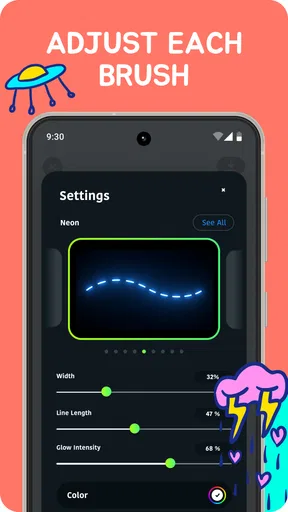
Of course, no app is perfect, and AmberPaint - Motion Brush is no exception. While the range of brushes and effects are impressive, I did find myself wishing for more customization options in terms of brush sizes and textures. Additionally, the app could benefit from more frequent updates to introduce new features and fix minor bugs that occasionally pop up.
The performance can sometimes be a little laggy, especially on older devices. If you’re running the app on a newer phone or tablet, you’ll likely have a smoother experience.
Final Thoughts
In the end, AmberPaint - Motion Brush is a fantastic app for anyone looking to add a touch of magic to their digital art. It’s engaging, fun, and offers a unique twist on traditional drawing apps with its motion features. Whether you’re looking to experiment with new art styles or simply want a relaxing way to pass the time, this app is definitely worth checking out.
So, what are you waiting for? Grab your stylus, unleash your creativity, and let your art come alive with AmberPaint - Motion Brush! It’s available for download on both Android and iOS, and I promise it’ll be a delightful addition to your app collection.
Pros
- Intuitive interface enhances user experience.
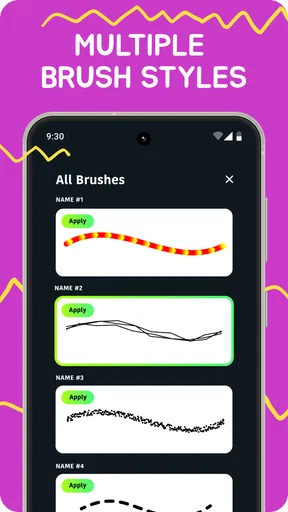
- Wide range of brush options available.
- Supports high-resolution exports.
- Seamless integration with cloud services.
- Regular updates with new features.
Cons
- Limited free version features.
- Occasional lag on older devices.
- No offline mode available.
- Requires significant storage space.
- Subscription model can be costly.
FAQs for AmberPaint - Motion Brush
What is AmberPaint - Motion Brush and how does it work?
AmberPaint - Motion Brush is a creative app designed for digital artists and enthusiasts. It allows users to create dynamic and expressive artwork using a unique motion brush feature. By utilizing touch gestures, users can paint with fluid, animated strokes that add movement and life to their creations. The app blends intuitive design with powerful tools, making it accessible for both beginners and experienced artists.
Is AmberPaint - Motion Brush suitable for beginners?
Yes, AmberPaint - Motion Brush is designed to be user-friendly, catering to artists at all skill levels. The app includes tutorials and an easy-to-navigate interface to help new users get started. With practice, beginners can quickly learn to create stunning motion-enhanced art. Advanced settings are also available for those looking to explore more complex techniques.
What devices are compatible with AmberPaint - Motion Brush?
AmberPaint - Motion Brush is available for both Android and iOS platforms. It supports a wide range of devices, including tablets and smartphones. For the best experience, it is recommended to use devices with larger screens and higher processing power to fully enjoy the app’s features and smooth performance. Check the app store for specific device compatibility.
Are there any in-app purchases or subscriptions in AmberPaint - Motion Brush?
AmberPaint - Motion Brush offers a free version with basic features to get users started. For those looking to expand their artistic capabilities, the app provides in-app purchases, including additional brushes, effects, and animation tools. There is also a subscription option that unlocks all premium content and provides regular updates and exclusive resources.
How does AmberPaint - Motion Brush handle data privacy and user information?
AmberPaint - Motion Brush takes data privacy seriously. The app requires minimal permissions and does not collect personal information without explicit user consent. Any data collected is used to enhance the user experience and improve app functionality. The app complies with all relevant privacy regulations, ensuring that user information is protected and secure.


